Last checked
Cengage CoursewareSilent Student, a Cengage auto-answer agent for MindTap
Yes. Silent Student, a Mac and Windows desktop app from $11.99 a month, opens your Cengage MindTap activity from its Canvas link, answers each part in Cengage’s own fields, including the equation editor and ChemPad, and submits it.
Does Silent Student work with Cengage MindTap?
Yes. Silent Student opens your Cengage MindTap activity from its Canvas link, answers each part in Cengage’s own fields, including the equation editor and ChemPad, and submits it. It does not take proctored exams, and a part it cannot read back is reported to you instead of counted. Every plan covers Cengage; Base is $11.99 a month.
| What it does | MindTap activities launched from Canvas: multiple choice, true/false, matching, select-all, dropdown, short-answer and fill-in parts in the two-pane player, then submits. |
|---|---|
| Which solver | From Canvas, MindTap runs on the general vision agent. The dedicated MindTap solver works through D2L Brightspace. |
| What it doesn’t do | Proctored exams. Written-response parts are not tested. |
| Plan | Any plan. Base $11.99/mo, Plus $24.99/mo, Pro $49.99/mo; no free plan. Compare plans |
| Benchmark replica result | 9 of 9 graded parts correct, submitted. Replica modeled on Cengage MindTap (Mixed assessment), not the real site; scored run, September 22, 2026. Watch the recording |
| Cengage’s own AI | The Student Assistant “will not reveal answers”; your instructor can view your chat logs with it, and it is not in every MindTap course. Cengage Help |
| Cengage’s Terms | The student terms for Cengage’s higher-education platforms (last updated November 2025) bar access “through any automated means (including use of scrapers, scripts, robots, spiders, or web crawlers)”. Read the Terms |
| Last checked | October 20, 2026 |
Is there a Cengage auto answer tool, bot or solver?
A few, and they differ in who enters the answer. Silent Student, which we make, opens a MindTap activity from its Canvas link, answers each part in Cengage’s own fields and submits it. Browser extensions such as SnapGPT, Solvely, Mindko and Apex Vision AI read a question from your screen and show an answer or steps, and none of their pages we read says it submits; SnapGPT lists an Autopilot on its paid plan. Mindgrasp turns your readings into notes and quizzes. Cengage’s own Student Assistant “will not reveal answers.” Mindko’s store listing advertises that its output can’t be detected; we haven’t tested that, and Silent Student makes no such claim. Cengage’s Terms bar access “through any automated means.”
Sources: Solvely, Chrome extension page; Chrome Web Store, Homework Solver by Mindko; SnapGPT, Cengage MindTap page; Apex Vision AI, MindTap guide; Mindgrasp; Cengage Help, MindTap: Student Assistant; Cengage Terms of Service, checked October 20, 2026.
Who can see Cengage answer keys in MindTap and WebAssign?
Your instructor, first: Cengage files MindTap’s “View Answer Keys” under Instructor Help, where an instructor can “View the correct answers for activities in the learning path.” In WebAssign, “If allowed by your instructor, the View Key button might be displayed after the assignment due date has passed.”
Is there a Cengage MindTap answer key? What Cengage says
Sources: Cengage Help, MindTap: View Answer Keys; Cengage Help, WebAssign: Answer Keys, checked October 20, 2026.
Which Cengage MindTap question types does Silent Student handle?
The replica is one we built and scored, not the real site.
| Question type | Handled | Notes |
|---|---|---|
| Multiple choice, true/false, select-all | Yes | Worked on our MindTap-style replica. |
| Matching and dropdowns | Yes | Worked on the replica. |
| Short answer and fill in the blank | Yes | Worked on the replica. |
| Equation editor and ChemPad fields | Yes | Cengage’s notation. |
| Vapor Pressure SIM | Dedicated handler | |
| Written response | Not tested | |
| Proctored exams | No | Yours to take. |
How much does Silent Student cost for Cengage MindTap?
Every plan includes Cengage MindTap, billed monthly. There is no free plan, and no free trial for general signups; a money-back guarantee applies if a problem on our side can’t be fixed within 3 days (request within 30 days, before you cancel; conditions apply).
| Plan | Price | Includes |
|---|---|---|
| Base | $11.99 a month | 1× monthly usage pool |
| Plus | $24.99 a month | 2× usage and the advanced pro model |
| Pro | $49.99 a month | Unlimited usage (fair use) and the pro model |
See Silent Student pricing and plans and the guarantee.
Does it work on proctored Cengage MindTap exams?
No. Silent Student does not take proctored MindTap exams or tests that need a lockdown browser. Those are yours to take.
Silent Student vs other tools for Cengage MindTap
| Tool | What it is | Who enters answers | Submits? | Price |
|---|---|---|---|---|
| Silent Student (ours) | Desktop app for Mac and Windows | Silent Student, in Cengage’s own fields | Yes | $11.99, $24.99 or $49.99 a month; no free plan |
| Cengage Student Assistant | Cengage’s own AI, in select courses | You; it “will not reveal answers” | No | Part of courses that include it |
| Apex Vision AI | Extension and mobile app; screenshot a question | You | Not stated | Free 30 requests, refill every 12 hours; from $7.99 a month |
| Solvely | Chrome extension; its page names Canvas, Blackboard, Moodle and Google Classroom, not MindTap | You, from a screenshot; it gives “step-by-step help” | Not stated | Free to add (“It’s Free”); paid prices not on its extension page |
| Mindko Homework Solver | Chrome extension; its listing names Blackboard, Canvas, Google Classroom and Moodle, not MindTap | You; highlight a question and choose “Ask Mindko” | Not stated | Free to start, its site says; offers in-app purchases |
We make Silent Student. Other rows quote their own pages, checked October 20, 2026: Cengage Student Assistant, Apex Vision AI, Solvely, Mindko Homework Solver.
Guides for Cengage MindTap
- What happens when a MindTap assignment is late?Most MindTap activities auto-submit at the due date with no penalty. Covers late periods, penalty math, reopening and extensions.
- Does WebAssign automatically submit?Not for untimed assignments: WebAssign saves your answers but does not submit them. Timed assignments submit when the timer reaches zero.
- Cengage MindTap rules: auto-submit, Check My Work, what it tracks
- Cengage MindTap login: how to access MindTap from Canvas or a course key
- Is there a Cengage MindTap answer key?Only for instructors. Cengage keeps MindTap answer keys in instructor help and verifies instructors, and a course key is just an enrollment code. Covers algorithmic questions, Check My Work and the Student Assistant.
- Is there a WebAssign answer key?Yes, but your instructor decides when you see it. Most WebAssign questions use randomized values, so posted answers rarely match. Covers View Key, worked solutions, Practice Another, Watch It, Master It and class keys.
- Is WebAssign proctored?Only on assignments your instructor sets up that way. Cengage describes three modes: LockDown Browser (macOS, Windows or Chromebook, not iPad or Linux), Respondus Monitor, which records you on webcam, and exams proctored through your LMS. Of WebAssign’s two built-in tools, only Respondus Monitor uses a camera.
- Where do you find a Cengage course key or WebAssign class key?From your instructor. What a course key looks like, how to enter one on the Cengage dashboard or at getenrolled.com, the grace period, WebAssign class keys, when a Canvas course needs no key, and a checklist for a key that fails.
- What is Cengage SAM, and how are SAM trainings and exams graded?SAM is Cengage’s Microsoft Office skills platform. Covers training retakes and best scores, exam rules such as incorrect actions per task, project auto-grading and file rules, SAM Paths and the institution key.
- What do Canvas, McGraw Hill, Pearson, Cengage and IXL say about AI tools?The exact Terms clauses on bots, AI agents, browser extensions and login sharing for every platform we cover, with section, date and source, plus what McGraw Hill, IXL and Pearson changed in 2026.
Silent Student for Cengage
Plans from $11.99/mo · Cancel anytime
- Base $11.99/mo
- Plus $24.99/mo
- Pro $49.99/mo
How did Silent Student do on our Cengage replicas?
Benchmark replicas we built for testing, modeled on Cengage. Each clip is one recorded run, sped up so you can follow the progress.
Replica modeled on Cengage MindTap
The agent works a MindTap-style two-pane activity player: multiple choice, true/false, matching, select-all, dropdown, short-answer and fill-in-the-blank parts, one attempt per question, then submits.
Recorded September 28, 2026 · 5× speed · 3 min 51 s of real time, shown in a 53 s clip
A benchmark replica we built for testing, modeled on Cengage MindTap. It is not the real site, and the platform's maker is not affiliated with it and has not endorsed it. The agent is the Base plan's vision engine, run in a standalone test harness, not the full desktop app.
Watch this recording on its own pageAll seven recordings and the full methodReplica modeled on Cengage WebAssign
The agent works a WebAssign-style calculus homework on volumes of solids: it picks graphs and 3D figures as answer choices, opens each part of a long accordion question, types answers in math notation, and submits.
Recorded September 29, 2026 · 10× speed · 8 min 6 s of real time, shown in a 56 s clip
A benchmark replica we built for testing, modeled on Cengage WebAssign. It is not the real site, and the platform's maker is not affiliated with it and has not endorsed it. The agent is the Base plan's vision engine, run in a standalone test harness, not the full desktop app.
Watch this recording on its own pageAll seven recordings and the full methodWhat does Silent Student do on Cengage MindTap?
Cengage homework opened from Canvas. Equation-editor and ChemPad entry, subscript-aware notation, one question part at a time.
The two-pane activity player
MindTap activities show the question beside the answer area. The agent works them question by question in that player and reads each answer back.
Choice, matching and dropdowns
Multiple choice, true/false, select-all, matching and dropdown parts are answered by the text of each option, not its position.
Typed answers in Cengage’s fields
Short-answer and fill-in parts go into Cengage’s own fields, including the equation editor and ChemPad where an activity uses them.
Submits and reports
It submits the activity and reads the result. A part it cannot read back is reported to you instead of counted.
How does Silent Student work on Cengage MindTap, step by step?
Open it from Canvas
Point Silent Student at your Canvas course. It follows your module link through the Cengage launch, in your own session.
Open the MindTap activity
It lands in the MindTap learning path and opens the activity the assignment points to.
Answer each question in its own field
Choice, matching, dropdown, short-answer and fill-in parts are answered in MindTap’s own controls and read back.
Submit and read the result
It submits the activity and reads the result. If it cannot confirm the submission, the run log says so.
What is Cengage’s Student Assistant, and how is Silent Student different?
The Student Assistant is Cengage’s own AI, and it helps rather than answers: “It will not reveal answers, but it can provide you with step-by-step help, study strategies and supplemental resources.” Also, “Your instructor will be able to view your chat logs with the Student Assistant.” Silent Student is a separate desktop app, not made by Cengage, that enters answers and submits.
Source: Cengage Help, MindTap: Student Assistant, checked October 20, 2026.
Can Cengage MindTap or WebAssign detect AI?
We found no Cengage page that says whether MindTap or WebAssign detects AI help, so we make no claim either way. Cengage does document what it records. MindTap’s engagement analytics include “The amount of time you have spent on the course page” and “The number of times you have logged onto the course,” and “Your instructor will be able to view your chat logs” with the Student Assistant. A WebAssign assignment can require Respondus Monitor, a webcam proctoring service where “Your teacher can review your recordings,” and it runs inside LockDown Browser, in which “you cannot use other applications, view other Web sites, copy, or print.” Cengage’s Terms apply whether or not anything is detected. Silent Student does not hide or fake activity, and it does not take proctored exams.
Does Cengage MindTap track time, tabs or copy and paste?
Sources: Cengage Help, MindTap: Review Your Progress; Cengage Help, MindTap: Student Assistant; Cengage Help, WebAssign: Work on an Assignment with Respondus Monitor, checked October 20, 2026.
Does Cengage automatically submit at the due date?
For MindTap, usually; for WebAssign, only timed work. Cengage’s MindTap help says “Most activities are automatically submitted if they are in progress when the due date passes, but some are not,” and lists InQuizitive, Learning Labs, Coding Labs and Practice Labs among the exceptions. WebAssign’s student guide says “Your answers are not automatically submitted for untimed assignments,” and “If you are working on a timed assignment and run out of time, your answers are submitted for you.” Silent Student submits each activity itself and reads the result back.
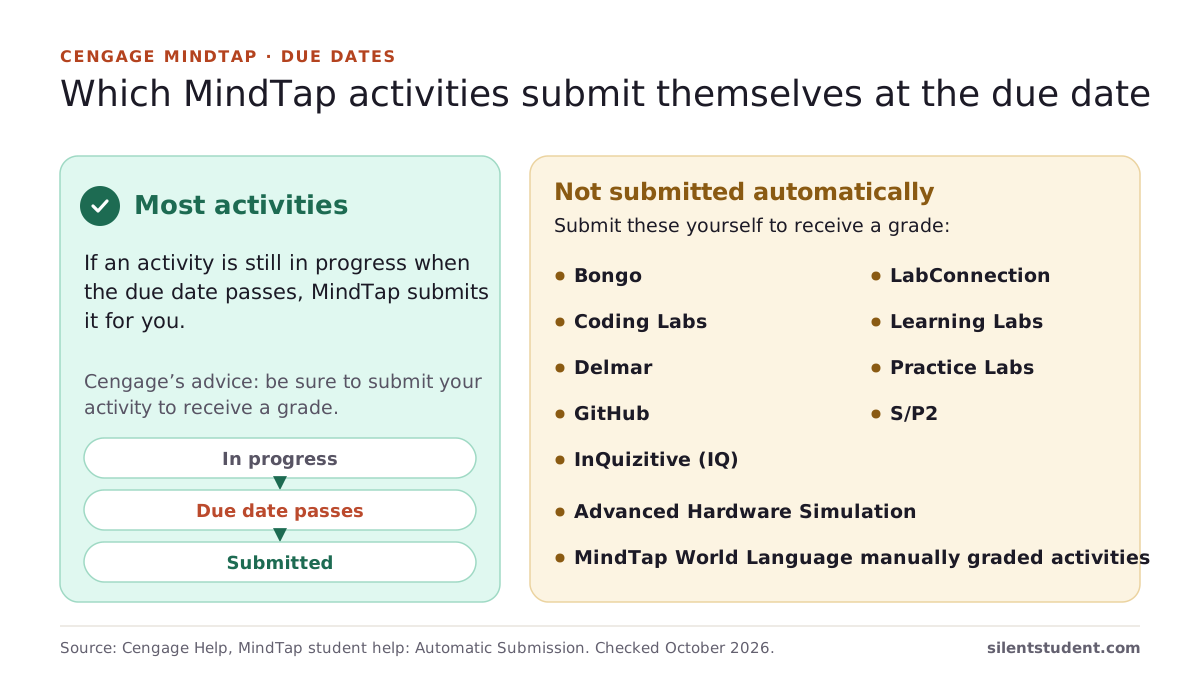
Does Cengage automatically submit? MindTap and WebAssign rules
Sources: Cengage Help, Automatic Submission; Cengage Help, WebAssign: Submit Your Answers, checked October 20, 2026.
Why does MindTap still mark my answer wrong?
Usually the attempt rules or the answer format. Cengage lets instructors set “How many times the student can submit a question (1-10)” and whether the student’s “Best Attempt (recommended) or Last Attempt” counts for the activity score, so under Last Attempt a worse later try replaces a better earlier one. Your instructor also decides when correctness marks and the answer key appear, and on WebAssign questions, significant figures, tolerance, units and syntax are the usual causes.
WebAssign still says it’s wrong: what else to check?
Source: Cengage Help, MindTap instructor guide: Activity settings, checked October 20, 2026.
Is there a Cengage solver on GitHub or a Chrome extension?
Two come up on GitHub, and we have not run either. nmchong/cengage_solver, a Python script created on March 14, 2026, signs into Brightspace, opens MindTap quizzes and listening activities, and “solves them by exhaustively checking possible answers, and auto-submits them when correct.” It saves your Brightspace session to a file, and on an activity that allows one attempt per question a wrong guess is final. cschubiner/Webassign-Solver, a C# program for webassign.net, was last updated on April 4, 2013. Both are free. Browser extensions such as Apex Vision AI, Solvely and Mindko are compared in the table above. Cengage’s Terms bar “scripts, robots” and other automated means.
Sources: GitHub, nmchong/cengage_solver; GitHub, cschubiner/Webassign-Solver; Cengage Terms of Service, checked October 20, 2026.
Is there a free Cengage auto-answer tool?
Not one that costs nothing and also submits for you, apart from nmchong/cengage_solver, the GitHub script that guesses until MindTap marks an answer correct. The free tiers are limited: SnapGPT gives 5 answers a day and Apex Vision AI 30 requests with a refill every 12 hours, Solvely and Mindko say they are free to start, and with each one you enter the answer yourself. Cengage’s Student Assistant comes with courses that include it and gives step-by-step help, not answers. Silent Student has no free plan: $11.99, $24.99 or $49.99 a month, with a money-back guarantee if a problem on our side can’t be fixed within 3 days (request within 30 days, before you cancel; conditions apply).
Sources: SnapGPT, Cengage MindTap page; Apex Vision AI, pricing; Solvely, Chrome extension page; Mindko, Chrome extension page; Cengage Help, MindTap: Student Assistant, checked October 20, 2026.
What do Cengage’s Terms say about automated tools?
Cengage’s Terms of Service for its higher-education platforms, last updated November 2025, say students may not “Access (or attempt to access) any part of the Services or Content through any automated means (including use of scrapers, scripts, robots, spiders, or web crawlers), or in any way circumvent the navigational structure or presentation of the Services”. In our reading, that reaches automated tools like Silent Student. We are not lawyers. Read the Terms yourself before you decide.
Source: Cengage, Terms of Service for Cengage Higher Education Platform (Student Version), checked October 20, 2026.
Cengage FAQ
How accurate is it on Cengage homework?
On our September 2026 benchmark, replicas modeled on Cengage platforms were worked start to finish: a WebAssign calculus homework scored 16 of 16 graded answers, a WebAssign-style STEM workbook 8 of 8, and a MindTap-style activity 9 of 9, all submitted. Across all seven benchmark assignments it scored 95% (156 of 164). Full method and every result: silentstudent.com/benchmark.
Does it work with the Cengage SIM activities?
The Cengage Vapor Pressure SIM has a dedicated handler and is worked sub-part by sub-part. Other Cengage simulations are detected as simulations, but there is no purpose-built solver behind them, so treat vapor pressure as the supported case rather than assuming every SIM activity is covered.
Does Silent Student work on Cengage WebAssign too?
Yes. On real WebAssign, Silent Student uses its dedicated WebAssign solver: it works each question part, presses that part’s own Submit and reads the green check. Every plan covers both WebAssign and MindTap, and our WebAssign vs MindTap page explains why Cengage sells both. WebAssign’s answer key, submission rules and equation-editor notation are on our WebAssign page.
Related platforms and tools
Platform pages and free tools related to Cengage MindTap.
Silent Student is not affiliated with, endorsed by, sponsored by, or certified by Cengage or its owners. Cengage is a trademark of its respective owner and is used here only to describe the software this product works with. Silent Student promises no grade or academic outcome; you are responsible for reviewing what is submitted under your name and for your institution's academic-integrity policies.
Queue a MindTap activity from Canvas
Pick the activity in your Canvas course and check the run log for what was submitted.
Plans from $11.99/mo · Cancel anytime · See pricing