Last checked
Cengage STEM engineSilent Student, a WebAssign solver and auto answer app that submits part by part
Silent Student is a desktop app for Mac and Windows, from $11.99 a month, that opens WebAssign from your Canvas course, enters each answer in WebAssign’s equation editor or ChemPad, and presses that part’s own Submit.
Does Silent Student work with WebAssign?
Yes. Silent Student is a WebAssign solver: a desktop app for Mac and Windows that opens your WebAssign assignment from Canvas, types each answer into WebAssign’s equation editor or ChemPad, and presses that part’s own Submit. It cannot win back submissions you have already used, and it stays out of proctored tests. Any plan works, from $11.99 a month.
| What it does | Math, physics and chemistry homework: MathQuill equation-editor answers, ChemPad formulas in _ and ^ notation, dropdowns and choice parts, each submitted on its own button. |
|---|---|
| What it doesn’t do | Proctored or locked-browser tests. It leaves a part alone once it shows a green check or has no submissions left. |
| Plan | Every plan includes WebAssign: Base $11.99, Plus $24.99, Pro $49.99 a month. See pricing |
| Benchmark replica results | 8 of 8 graded parts correct, submitted. Replica modeled on WebAssign (STEM homework workbook), not the real site; scored run, September 22, 2026. Watch the recording 16 of 16 graded parts correct, submitted. Replica modeled on Cengage WebAssign (Calculus homework), not the real site; scored run, September 22, 2026. Watch the recording |
| Cengage’s Terms | The student terms for Cengage’s higher-education platforms (last updated November 2025) bar access “through any automated means (including use of scrapers, scripts, robots, spiders, or web crawlers)”. Read the Terms |
| Last checked | October 20, 2026 |
Saved or submitted: what happens to your WebAssign answers?
Cengage’s student guide says “Your answers are automatically saved” but “not automatically submitted for untimed assignments.” On a timed assignment, “your answers are submitted for you” when time runs out.
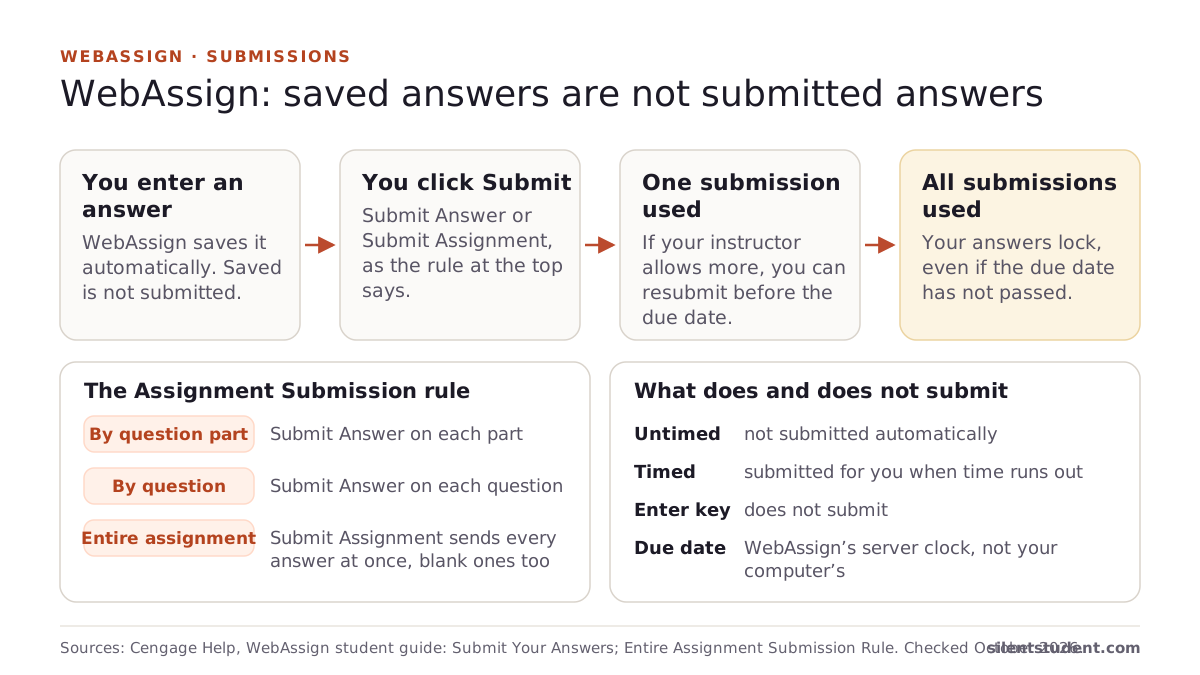
Does WebAssign automatically submit? Cengage’s rules, explained
Source: Cengage Help, WebAssign student guide: Submit Your Answers, checked October 20, 2026.
Can you get WebAssign answers or an answer key?
Not as a list you can download: Cengage says “Most questions in WebAssign use randomized values,” so answers posted online usually carry someone else’s numbers. Your instructor decides when a key appears, for example through a View Key button after the due date.
Is there a WebAssign answer key? What Cengage says
Sources: Cengage Help, WebAssign: Randomization; Cengage Help, WebAssign: Answer Keys, checked October 20, 2026.
Which WebAssign question types does Silent Student handle?
| Question type | Handled | Notes |
|---|---|---|
| Equation editor (MathQuill) | Yes | Derivatives, integrals, matrices and fractions typed into the graded field. |
| ChemPad and formula fields | Yes | WebAssign notation: H_2O, Na^+, Fe^{3+}. |
| Numeric fields | Yes | |
| Dropdown, radio and checkbox parts | Yes | |
| Multi-column ordering | Yes | |
| Polarity tables | Yes | |
| Multi-part accordions | Yes | One part at a time, each on its own Submit. |
| Lewis structures (Marvin JS) | Yes | The structure is written into the editor. |
| Free-body diagrams, vectors, graphing, drawing | No | Do these parts yourself. |
| Proctored or LockDown Browser tests | No | Yours to take. |
What it will not do on WebAssign
WebAssign counts your submissions, so here is what it refuses to spend them on.
- It leaves correct and locked parts alone. A part with a green check, or with no submissions left, is skipped. It targets unanswered and partial-credit parts.
- No free-body diagrams, graphing or drawing. Dragging vectors, plotting a graph or drawing a figure has no solver behind it. Marvin JS Lewis structures are the exception.
- Hard problems are still hard. It answers on the merits and reads the result back. A wrong answer costs a submission exactly as yours would.
- It gives up rather than burn every attempt. A wrong part is retried a bounded number of times, then marked stuck, leaving your remaining submissions intact.
- Notation is a real way to fail. It writes WebAssign’s own notation, H_2O or Fe^{3+}, but an answer can still be marked wrong for formatting.
How much does Silent Student cost for WebAssign?
Every plan includes WebAssign, billed monthly. There is no free plan, and no free trial for general signups; a money-back guarantee applies if a problem on our side can’t be fixed within 3 days (request within 30 days, before you cancel; conditions apply).
| Plan | Price | Includes |
|---|---|---|
| Base | $11.99 a month | 1× monthly usage pool |
| Plus | $24.99 a month | 2× usage and the advanced pro model |
| Pro | $49.99 a month | Unlimited usage (fair use) and the pro model |
See Silent Student pricing and plans and the guarantee.
Does it work on proctored WebAssign exams?
No. Silent Student does not take proctored WebAssign tests or tests that need Respondus LockDown Browser. It works homework; those tests are yours to take.
Silent Student vs other tools for WebAssign
| Tool | What it is | Who enters answers | Submits? | Price |
|---|---|---|---|---|
| Silent Student (ours) | Desktop app for Mac and Windows | Silent Student types each part | Yes, each part on its own Submit | $11.99, $24.99 or $49.99 a month; no free plan |
| SnapGPT | Chrome and Firefox extension | You, or Autopilot on its paid plan | “It never submits for you” | Free 5 answers a day; Plus $9.99 a month |
| FastSolve | Extension; paste or screenshot on WebAssign | You type the answer | No; “Native WebAssign support is on the roadmap” | Free 10 solves a day; Pro $19.99 a month |
| cschubiner/Webassign-Solver | GitHub script (C#) | The script | Not stated; last updated April 4, 2013 | Free |
| Cengage Student Assistant | Cengage’s own AI, in select courses | You; it “will not reveal answers” | No | Part of courses that include it |
We make Silent Student. Other rows quote their own pages, checked October 20, 2026: SnapGPT, FastSolve, cschubiner/Webassign-Solver, Cengage Student Assistant.
Guides for WebAssign
- Does WebAssign automatically submit?Not for untimed assignments: WebAssign saves your answers but does not submit them. Timed assignments submit when the timer reaches zero.
- What happens when a MindTap assignment is late?
- How to do a subscript in WebAssign, and why it says wrong
- Is there an app for my online homework?
- Is there a WebAssign answer key?Yes, but your instructor decides when you see it. Most WebAssign questions use randomized values, so posted answers rarely match. Covers View Key, worked solutions, Practice Another, Watch It, Master It and class keys.
- Is WebAssign proctored?Only on assignments your instructor sets up that way. Cengage describes three modes: LockDown Browser (macOS, Windows or Chromebook, not iPad or Linux), Respondus Monitor, which records you on webcam, and exams proctored through your LMS. Of WebAssign’s two built-in tools, only Respondus Monitor uses a camera.
- Where do you find a Cengage course key or WebAssign class key?From your instructor. What a course key looks like, how to enter one on the Cengage dashboard or at getenrolled.com, the grace period, WebAssign class keys, when a Canvas course needs no key, and a checklist for a key that fails.
- What do Canvas, McGraw Hill, Pearson, Cengage and IXL say about AI tools?The exact Terms clauses on bots, AI agents, browser extensions and login sharing for every platform we cover, with section, date and source, plus what McGraw Hill, IXL and Pearson changed in 2026.
Silent Student for WebAssign
Plans from $11.99/mo · Cancel anytime
- Base $11.99/mo
- Plus $24.99/mo
- Pro $49.99/mo
How did Silent Student do on our WebAssign replica?
A benchmark replica we built for testing, modeled on WebAssign. One recorded run, sped up so you can follow the progress.
Replica modeled on Cengage WebAssign
The agent works a WebAssign-style calculus homework on volumes of solids: it picks graphs and 3D figures as answer choices, opens each part of a long accordion question, types answers in math notation, and submits.
Recorded September 29, 2026 · 10× speed · 8 min 6 s of real time, shown in a 56 s clip
A benchmark replica we built for testing, modeled on Cengage WebAssign. It is not the real site, and the platform's maker is not affiliated with it and has not endorsed it. The agent is the Base plan's vision engine, run in a standalone test harness, not the full desktop app.
Watch this recording on its own pageAll seven recordings and the full methodWhat does Silent Student do on WebAssign?
Cengage’s STEM homework engine, with equation-editor input — derivatives, integrals, matrices, and formula notation.
Equation editor support
Types directly into WebAssign's MathQuill equation editor — derivatives, integrals, matrices, and fractions written as LaTeX go into the field that gets graded, not a screenshot of one.
Subscript and superscript notation
Writes chemistry and physics the way WebAssign expects: H_2O, Na^+, Fe^{3+}, and electron configurations like [Ne]3s^2, with subscripts and superscripts formatted correctly.
ChemPad and formula fields
Fills ChemPad and symbolic-input boxes using WebAssign's _ and ^ notation, so an answer is less likely to fail on improper formatting instead of being judged on its merits.
Reads each question type
Numeric inputs, dropdowns, radio choices, multi-column ordering, checkboxes, and polarity tables — it detects the input shape and fills it the way that field expects. Marvin JS Lewis-structure questions are drawn by writing the structure into the editor directly.
Expand, answer, submit, verify
It opens one sub-question at a time, answers it, submits on that part's own button, then reads the scoring table before moving on. Correct and locked parts are left alone.
Scoring-table navigation
It reads the scoring table at the top of the assignment, jumps to the first unanswered question, and spends its steps on what is still worth points.
How does Silent Student work on WebAssign, step by step?
Open it through Canvas
Silent Student reaches your WebAssign assignment the same way you do — through the Canvas course and the Cengage launch, carrying your signed-in session. There is no separate login to manage.
Read the page
It scans the long scrollable assignment, reads the scoring table, and finds the question parts that still need answers — leaving anything already correct alone.
Work each part
For every open sub-question it picks the right input, types the answer with correct notation, submits that part on its own button, and checks the result before continuing.
Stop when it is done
It moves through the assignment until every reachable part is answered or locked, then updates your progress so you can see where things landed.
How many submissions do you get in WebAssign?
Your instructor decides. The same guide says “Each time you submit answers to WebAssign, you use a submission,” and “After you use all of your allowed submissions, you can’t change your answers, even if the assignment due date has not passed.” Due dates follow the WebAssign server’s clock, not the one on your computer.
Source: Cengage Help, WebAssign student guide: Submit Your Answers, checked October 20, 2026.
Is there a WebAssign AI?
Yes, in some courses. Cengage’s Student Assistant “is a generative AI assistant that provides students with guidance, but it will not reveal answers.” It is “automatically enabled for all supported assignments except quizzes, exams and tests,” and “not available for all WebAssign courses.” Silent Student is a separate third-party app that enters and submits answers.
Sources: Cengage Help, WebAssign: Enable the Student Assistant; Cengage, WebAssign updates, checked October 20, 2026.
Is there a WebAssign solver, auto answer bot or extension?
A few tools claim the job. SnapGPT is a browser extension whose paid Autopilot works one question at a time; its WebAssign page says “It never submits for you.” FastSolve answers from a paste or screenshot: “Native WebAssign support is on the roadmap.” The best-known GitHub script, cschubiner/Webassign-Solver, was last updated on April 4, 2013. Cengage’s own Student Assistant provides guidance but “will not reveal answers.” Silent Student is a desktop WebAssign solver and auto answer app that types each answer and presses that part’s own Submit.
Sources: SnapGPT, WebAssign page; FastSolve, WebAssign page; GitHub, cschubiner/Webassign-Solver; Cengage Help, WebAssign: Enable the Student Assistant, checked October 20, 2026.
Can WebAssign detect AI?
We found no Cengage page that says how, or whether, WebAssign detects AI help on homework, so we make no claim either way. Cengage does document what WebAssign records. Its instructor guide says the Student Access Log “shows when your students have opened and submitted their assignments,” down to the date and time of each submitted answer, saved work and any answer key viewed, and the Responses page “shows your student’s most recent answers for the assignment.” Exams can add LockDown Browser or Respondus Monitor, which Cengage says can “record students via webcam during exams.” Cengage’s Terms apply whether or not anything is detected. Silent Student does not hide or fake any of it.
Sources: WebAssign instructor guide: View Student Access Logs; WebAssign instructor guide: View a Student’s Answers; Cengage Help, WebAssign: LockDown Browser; Cengage, WebAssign updates, checked October 20, 2026.
Is there a free WebAssign AI or solver?
Yes, with limits, and none of the free options we found says it submits for you. Cengage’s Student Assistant comes with WebAssign courses that include it and gives step-by-step help, but “it will not reveal answers.” SnapGPT’s free plan gives 5 answers a day and FastSolve’s 10 solves a day, per their own WebAssign pages, and you type each answer in. cschubiner/Webassign-Solver on GitHub is free but was last updated in April 2013. A chatbot’s free tier works if you copy each question in. Silent Student has no free plan: $11.99, $24.99 or $49.99 a month, with a money-back guarantee if a problem on our side can’t be fixed within 3 days (request within 30 days, before you cancel; conditions apply).
Sources: Cengage Help, WebAssign: Enable the Student Assistant; SnapGPT, WebAssign page; FastSolve, WebAssign page; GitHub, cschubiner/Webassign-Solver, checked October 20, 2026.
What do Cengage’s Terms say about automated tools?
Cengage’s Terms of Service for its higher-education platforms, last updated November 2025, say students may not “Access (or attempt to access) any part of the Services or Content through any automated means (including use of scrapers, scripts, robots, spiders, or web crawlers), or in any way circumvent the navigational structure or presentation of the Services”. In our reading, that reaches automated tools like Silent Student. We are not lawyers. Read the Terms yourself before you decide.
Source: Cengage, Terms of Service for Cengage Higher Education Platform (Student Version), checked October 20, 2026.
Does it work on a Chromebook?
No. Silent Student is a desktop app for a Mac with Apple Silicon on macOS 13 or later (Intel Macs by request for members) or a 64-bit PC on Windows 10 or later. A Chromebook or an iPad can open WebAssign in a browser, but it cannot run the app. Cengage Read, Cengage’s app, is an eBook reader rather than a way to do coursework; see does WebAssign have an app?
Read next
- WebAssign AI tools compared: Student Assistant, ChatGPT, extensions
- Silent Student vs SnapGPT
- Silent Student vs FastSolve
- Cengage auto answer for MindTap and other Cengage homework
- WebAssign vs MyMathLab: how the two homework platforms differ
- WebAssign vs MindTap: why Cengage sells both
- Is Chegg worth it for WebAssign homework?
WebAssign FAQ
How accurate is it on WebAssign-style homework?
On our September 2026 benchmark, two replicas modeled on WebAssign were worked start to finish: a STEM workbook scored 8 of 8 graded answers and a calculus homework 16 of 16, and both were submitted. Those replicas tested the general agent; on real WebAssign the app uses its dedicated WebAssign solver. Across all seven benchmark assignments it scored 95% (156 of 164). Full method and every result: silentstudent.com/benchmark.
Is there a Cengage auto answer for WebAssign?
Not from Cengage: its Student Assistant, in WebAssign courses that include it, “will not reveal answers.” Silent Student is a third-party WebAssign auto answer app for Mac and Windows. It opens the assignment from Canvas, enters each answer in the equation editor or ChemPad and presses that part’s own Submit. It leaves proctored tests alone. For Cengage MindTap, see our Cengage page. WeBWorK, an open-source homework system with a similar name, has its own page.
Which WebAssign subjects does this work on?
WebAssign is the Cengage STEM engine, so the focus is math, physics, and chemistry. The chemistry path has been run live on real general-chemistry homework, and the same equation editor and formula handling carry across the math and physics tracks.
Can it handle the equation editor, not just multiple choice?
Yes. It writes directly into WebAssign's MathQuill equation editor and ChemPad formula fields, including derivatives, integrals, matrices, and subscript and superscript notation. It does not depend on a question being multiple choice.
Does Silent Student submit WebAssign assignments automatically?
Yes, part by part. WebAssign does not submit untimed work for you. Silent Student expands one sub-question, answers it, presses that part’s own Submit and reads the result before moving on, and it never tries to batch a global submit. WebAssign’s own rules on timers, due dates and saved work are in our guide to whether WebAssign submits automatically.
Will it waste my attempts on questions I already got right?
No. It reads each part's check mark and the scoring table, and skips any question part that already shows a green check or has locked out after using its attempts. It targets unanswered and partial-credit parts.
Do I need to log into WebAssign separately?
No. It opens WebAssign through your Canvas course and the Cengage launch, using the session you are already signed into. There is nothing extra to configure on the WebAssign side. A Canvas-linked class usually needs no class key; for a class you join on your own, see where to find a WebAssign class key.
Related platforms and tools
Platform pages and free tools related to WebAssign.
Silent Student is not affiliated with, endorsed by, sponsored by, or certified by WebAssign or its owners. WebAssign is a trademark of its respective owner and is used here only to describe the software this product works with. Silent Student promises no grade or academic outcome; you are responsible for reviewing what is submitted under your name and for your institution's academic-integrity policies.
Queue your WebAssign homework
Queue the assignment from Canvas and read the run log: which parts it submitted, which it left, and why.
Plans from $11.99/mo · Cancel anytime · See pricing